Ever wondered how to make your Roblox gameplay videos look crisp, professional, and truly showcase your epic builds or legendary wins? In 2026, with over 87% of US gamers regularly diving into virtual worlds, having high-quality content is more important than ever. This comprehensive guide will walk you through the essential steps to significantly improve your Roblox recording quality, from optimizing in-game settings to selecting the best recording software. We'll cover crucial technical aspects like frame rates, resolutions, and bitrates, while also offering practical tips for busy adult gamers who want to create stunning content without spending hours on complex setups. Discover how to balance performance and visual fidelity, ensuring your recordings capture every detail of your Roblox adventures. Get ready to elevate your content and impress your audience with crystal-clear visuals and smooth gameplay footage, making your Roblox creations truly shine on platforms like YouTube and TikTok. This article provides actionable solutions for common pain points, helping you achieve professional results on any budget.
How can I make my Roblox videos look professional?
To make your Roblox videos look professional, focus on achieving smooth 60 FPS gameplay, recording at 1080p or 720p with a suitable bitrate (e.g., 15-25 Mbps for 1080p60), and using a hardware encoder like NVENC or AMF. Optimize in-game graphics for stability, ensure clear audio, and perform basic post-production edits to refine your footage and enhance visual appeal. Consistency in quality is key to a polished look.
What are the best settings for recording Roblox gameplay?
The best settings for recording Roblox gameplay typically include in-game graphics set to a stable 60 FPS, recording at 1080p (or 720p if needed) at 60 FPS, using a bitrate between 15,000 and 25,000 Kbps with an H.264 hardware encoder (like NVENC or AMF), and ensuring your audio is clear at 48kHz. These settings balance visual quality, smooth motion, and manageable file sizes for most systems.
Which free software records Roblox in high quality?
OBS Studio is the top free software for recording Roblox in high quality. It offers extensive control over video and audio settings, supports hardware encoders, and allows for custom scene creation, delivering professional results. While it has a learning curve, its capabilities for quality and flexibility are unmatched among free options, making it ideal for aspiring content creators.
Why is my Roblox recording lagging or blurry?
Roblox recordings often lag or appear blurry due to insufficient recording bitrate, an inefficient encoder, or hardware limitations. Lagging indicates your system (CPU, GPU, or storage) can't keep up, while blurriness often means the bitrate is too low for the resolution and frame rate. Optimizing settings, closing background apps, and using a hardware encoder can resolve these issues.
Is it possible to record Roblox in 4K resolution?
Yes, it is possible to record Roblox in 4K resolution (3840x2160), but it requires a very powerful PC with a high-end GPU and CPU, significant RAM (16GB+), and a fast NVMe SSD. While Roblox itself isn't a graphically demanding game for 4K, recording at such a high resolution and frame rate (e.g., 60 FPS) puts immense strain on your system, requiring a high bitrate (50,000+ Kbps) for good quality.
How do I know if my PC can handle high-quality Roblox recording?
To check if your PC can handle high-quality Roblox recording, assess your CPU (Intel i5/Ryzen 5 or better), GPU (NVIDIA GTX 1060 or AMD RX 580 or higher), and RAM (16GB recommended). A solid-state drive (SSD) for both Roblox and your recording software is also crucial for smooth performance. Using a tool like Task Manager during a test recording can reveal if any component is maxing out, indicating a bottleneck.
What is the ideal bitrate for 1080p Roblox recordings?
For crystal-clear 1080p Roblox recordings at 60 frames per second, an ideal bitrate typically ranges from 15,000 to 25,000 Kbps (kilobits per second) using a high-efficiency codec like H.264 or H.265. While higher bitrates yield better quality, they also result in larger file sizes. Experiment within this range to find the perfect balance for your system and desired output.
Does recording Roblox affect my in-game performance?
Yes, recording Roblox often impacts in-game performance because it utilizes your CPU, GPU, and storage resources simultaneously. The extent of the impact depends on your hardware specifications, recording software efficiency, and chosen settings (resolution, frame rate, bitrate). Optimizing your settings and ensuring no unnecessary background applications are running can minimize performance drops.
Why are my Roblox recordings choppy even with good FPS?
Choppy Roblox recordings despite good in-game FPS usually point to an issue with your recording software settings or hardware. Common culprits include a low recording bitrate, an inefficient encoder (try hardware encoders like NVENC or AMF), a slow hard drive unable to write data fast enough, or background processes consuming too many resources. Check your software's frame rate and ensure it matches your output settings.
Can I improve Roblox recording quality without upgrading my hardware?
Yes, you can significantly improve Roblox recording quality without hardware upgrades. Focus on optimizing in-game graphics settings (lower if needed), using efficient recording software like OBS Studio with hardware encoders, closing all unnecessary background applications, and selecting appropriate recording resolutions and bitrates that your current system can comfortably handle. Even small tweaks can make a big difference.
What are the best audio settings for Roblox gameplay recordings?
For the best audio in Roblox recordings, ensure your microphone is set to 48kHz stereo, and use noise suppression filters in your recording software to minimize background sounds. Capture game audio separately at a high quality (e.g., 192-320 Kbps AAC). Monitoring your audio levels during recording is crucial to prevent clipping or muffled sound, giving your audience a clear listening experience.
How important is an SSD for recording Roblox gameplay?
An SSD (Solid State Drive) is very important for recording Roblox gameplay, especially at higher qualities. It drastically improves write speeds compared to traditional HDDs, which prevents dropped frames, stuttering, and choppy recordings due to the drive being unable to keep up with the data flow. Installing both Roblox and your recording software on an SSD ensures smoother performance and better overall recording quality.
Ever hit that record button in Roblox, only to watch your amazing gameplay turn into a blurry, choppy mess later? You are not alone. For many US gamers, juggling jobs, families, and life means our precious gaming time is for relaxation and fun, not wrestling with complex recording software. Yet, as the gaming landscape evolves in 2026, with 87% of US gamers regularly playing and dedicating an average of 10+ hours a week, sharing those epic moments, creative builds, or social triumphs has become a huge part of the experience. We want our content to look professional, to genuinely reflect the vibrant Roblox worlds we explore, without breaking the bank or demanding hours of troubleshooting.
You might be a Millennial or Gen Z gamer, balancing mobile and PC cross-play, connecting with friends on Discord, and looking to make your mark as a creator or streamer. The challenge is real: how do you get crisp, smooth Roblox recordings when your hardware isn't top-tier, or when you just don't have endless hours to tweak settings? This guide is for you. We're going to dive deep into how to improve Roblox recording quality, offering practical, no-nonsense advice that respects your time and budget. From optimizing in-game settings to choosing the right software and understanding crucial technical terms, we'll equip you with the knowledge to transform your recordings from drab to fab. Let's get your Roblox moments looking their best, so you can share your passion with clarity and confidence.
Why Does My Roblox Recording Look Bad and How Can I Fix It?
Many factors contribute to poor Roblox recording quality. Often, it's a combination of low in-game graphics settings, inefficient recording software, incorrect encoder configurations, or simply hardware limitations. Think of it this way: your computer has to run Roblox and record it simultaneously, which is like asking it to do two demanding jobs at once. If it's struggling with one, the other suffers. Common symptoms include pixelation, blurriness, dropped frames, or audio sync issues. Identifying the root cause is the first step to fixing it.
To start, ensure your PC meets at least the minimum requirements for both Roblox and your chosen recording software. Then, evaluate your in-game Roblox settings. Are they set to a level your hardware can comfortably handle? Often, sacrificing a tiny bit of visual fidelity in-game for a smoother recording results in a far better final video. Next, examine your recording software settings: resolution, frame rate, and bitrate are crucial. Finally, consider what else your PC is doing in the background. Every open browser tab or background application saps resources that could be used for your recording.
What Are the Optimal In-Game Roblox Graphics Settings for Recording?
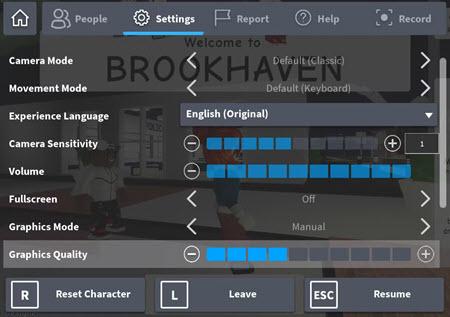
Optimizing your in-game Roblox graphics is crucial for clean recordings. Roblox offers a “Graphics Quality” slider in its settings. While pushing it to max seems ideal, it can strain your system, especially if you're also recording. For most gamers, especially those with mid-range PCs, finding a balance is key. Start by setting your Graphics Mode to 'Manual' and adjusting the Graphics Quality slider incrementally.
- Graphics Quality: Aim for around 7-8 out of 10 if your PC can maintain a stable 60+ FPS while playing. If you experience drops, lower it to 5-6. The goal is consistent performance.
- Resolution: Play Roblox at your monitor's native resolution. Recording software will capture this. If your PC struggles, you might play at native but record at a slightly lower resolution (e.g., 720p instead of 1080p) to ease the load.
- Full Screen vs. Windowed: Full screen generally provides better performance by dedicating more resources to the game. However, windowed mode might be easier for some recording setups.
- VSync: It's often recommended to turn VSync OFF in Roblox if your recording software handles frame rate locking. This can reduce input lag and potentially improve overall fluidity, though it might introduce screen tearing in actual gameplay if your monitor's refresh rate isn't perfectly synced.
Remember, a slightly lower in-game setting that results in a perfectly smooth, clear recording is always better than a high setting that produces a choppy, unwatchable video. Experimentation is your best friend here.
Which Recording Software is Best for High-Quality Roblox Videos?
Choosing the right software is paramount. Different programs offer varying levels of control, performance impact, and ease of use. Here are some top contenders popular among US gamers:
- OBS Studio (Open Broadcaster Software):
This free, open-source powerhouse is the gold standard for many streamers and content creators. It offers unparalleled control over settings, multiple scene creation, and excellent quality output. It supports hardware encoders (NVENC, AMF) which significantly reduce CPU load. The learning curve can be steep for beginners, but countless tutorials exist. For the budget-conscious gamer looking for professional results, OBS is a must-learn.
- NVIDIA ShadowPlay (GeForce Experience):
If you have an NVIDIA graphics card (GTX 600 series or newer), ShadowPlay is built into GeForce Experience. It's incredibly efficient, using dedicated hardware on your GPU for recording, leading to minimal performance impact. It's user-friendly, offering instant replay and background recording features. Perfect for those who want high quality with minimal fuss and own an NVIDIA card.
- AMD ReLive (Radeon Software):
Similar to ShadowPlay, AMD ReLive is for users with AMD Radeon graphics cards. It offers similar hardware-accelerated recording capabilities, instant replay, and good quality with low performance overhead. If you're an AMD loyalist, ReLive is your go-to for hassle-free, quality recordings.
- Xbox Game Bar (Windows Built-in):
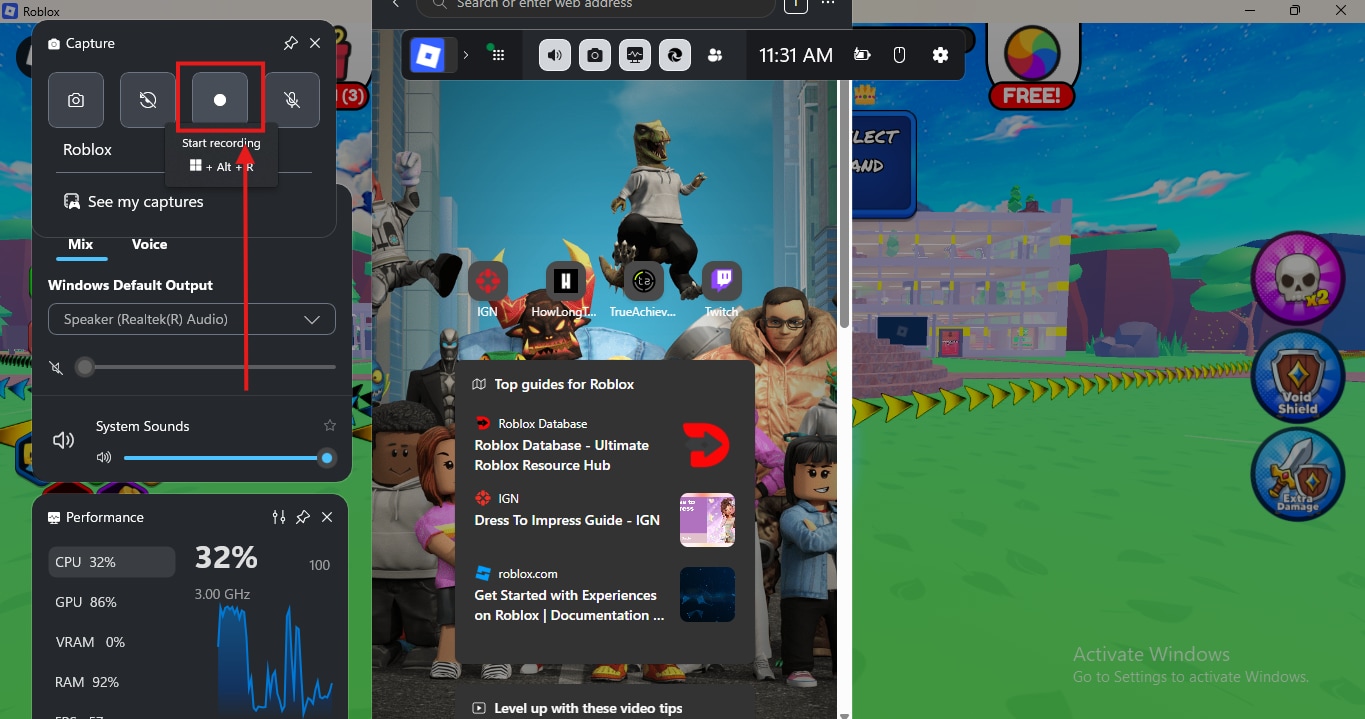
Windows users have the Xbox Game Bar pre-installed. It's convenient for quick clips and simple recordings, accessible by pressing Win+G. While easy to use, it offers fewer advanced settings compared to OBS or dedicated GPU software, and its performance impact can sometimes be higher on less powerful systems. Good for casual sharing, less so for professional content.
For most serious content creators balancing life and gaming, OBS Studio combined with hardware encoders (NVENC or AMF) offers the best blend of quality, control, and efficiency. For simplicity and minimal impact on compatible hardware, ShadowPlay or ReLive are excellent choices.
How Do I Configure My Recording Software for Crystal-Clear Roblox Footage?
Once you've chosen your software, tweaking its settings is critical for high-quality output. This is where many recordings go wrong. Focus on these key areas, making sure they match your system's capabilities:
1. Resolution:
- 1080p (1920x1080): The most common standard for YouTube and other platforms. Aim for this if your system can handle it.
- 720p (1280x720): A good alternative for systems that struggle with 1080p. It still looks good, especially on mobile devices where a significant portion of the US gaming audience consumes content.
2. Frame Rate (FPS):
- 60 FPS: Ideal for smooth, professional-looking gameplay. Roblox gameplay benefits greatly from this.
- 30 FPS: Acceptable if 60 FPS causes performance issues. While less fluid, it can still look good if consistent. Consistency is key.
3. Bitrate:
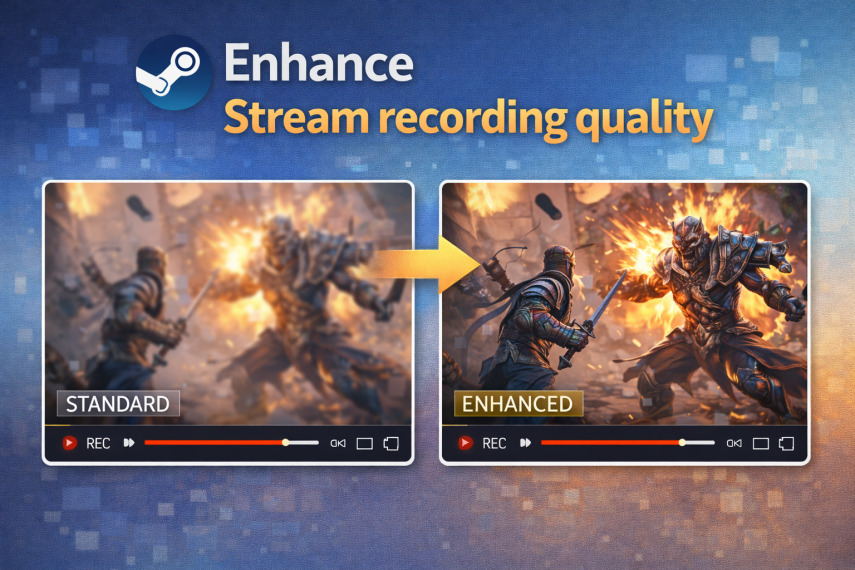
Bitrate dictates how much data is stored per second of video. Higher bitrate equals better quality but larger file sizes. This is arguably the most crucial setting for visual clarity.
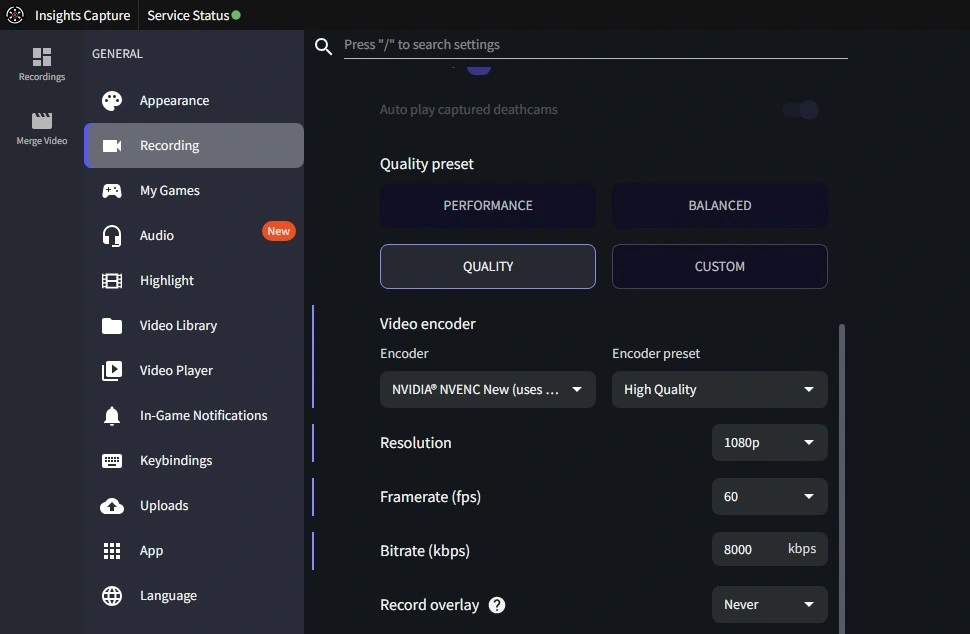
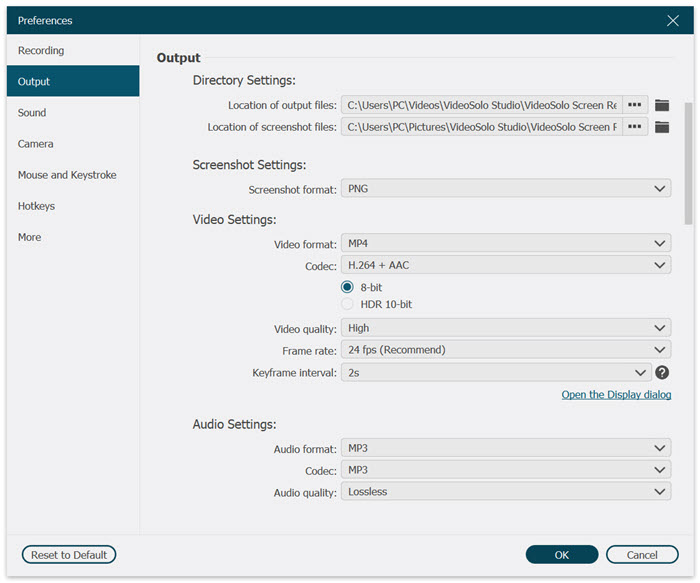
- For 1080p60: Start with 15,000-25,000 Kbps (kilobits per second).
- For 720p60: Start with 8,000-12,000 Kbps.
- For 1080p30: Start with 10,000-15,000 Kbps.
Experiment within these ranges. Too low a bitrate will cause pixelation and blurriness, especially during fast-paced action. Too high might strain your system or create unnecessarily huge files.
4. Encoder:
- Hardware Encoders (NVENC H.264/H.265, AMD AMF H.264/H.265, Intel Quick Sync): These use dedicated hardware on your GPU or CPU for encoding, significantly reducing the performance impact on your main processor. Always prioritize these if available.
- Software Encoders (x264): While offering potentially higher quality at lower bitrates, they rely heavily on your CPU, which can lead to performance drops in-game if your CPU is not very powerful.
5. Audio Settings:
Ensure your audio bitrate is high (192-320 Kbps AAC is standard) and use noise suppression filters if you're recording your voice. Separate audio tracks for game sound and microphone can be a lifesaver in editing.
Can My PC Hardware Affect Roblox Recording Quality?
Absolutely. Your PC's hardware is the foundation of your recording capabilities. Even with perfect software settings, weak hardware will bottleneck your efforts. Here's a quick breakdown:
- CPU (Processor): Handles game logic, background tasks, and software encoding (if chosen). A strong multi-core CPU (e.g., Intel i5/i7/i9 or AMD Ryzen 5/7/9 from recent generations) is essential for smooth multitasking.
- GPU (Graphics Card): Renders the game and handles hardware encoding. A dedicated graphics card (NVIDIA GTX 1060 or AMD RX 580 or newer) is highly recommended. Integrated graphics often struggle with simultaneous gaming and recording at high quality.
- RAM (Memory): 16GB is the sweet spot for gaming and recording in 2026. 8GB can work but might cause stuttering or performance drops during intensive moments.
- Storage (SSD vs. HDD): Recording directly to an SSD (Solid State Drive) is crucial. HDDs (Hard Disk Drives) are much slower and often can't write data fast enough, leading to dropped frames in your recording even if your game looks smooth. An NVMe SSD is even better.
For gamers on a budget, consider upgrading your RAM to 16GB first, followed by a mid-range dedicated GPU, and definitely an SSD if you don't have one. These are often the biggest performance bottlenecks for recording. US gamers are always looking for value for money, and these upgrades provide significant returns.
What Background Processes Should I Close Before Recording Roblox?
Closing unnecessary background processes is one of the easiest and most effective ways to free up system resources for Roblox and your recording software. It's like clearing out distractions so your PC can focus on its main job.
- Web Browsers: Chrome, Firefox, Edge, etc., can be massive RAM hogs, especially with multiple tabs open. Close them unless absolutely necessary.
- Communication Apps: Discord, while great for social gaming, can consume CPU and RAM. Consider optimizing its settings or closing it if you're recording solo content.
- Cloud Storage Sync: OneDrive, Google Drive, Dropbox actively sync files, using CPU, RAM, and disk I/O. Pause syncing during recording.
- Antivirus Scans: Ensure no active scans are scheduled during your recording session.
- Other Games/Launchers: Close any other game launchers or games running in the background.
- System Tray Icons: Check your system tray for any non-essential apps silently running. Many can be closed or disabled from starting with Windows.
A quick check in Task Manager (Ctrl+Shift+Esc) can reveal which processes are consuming the most CPU, Memory, Disk, and Network resources. End tasks that aren't critical to your gaming or recording session.
How Can I Edit My Roblox Recordings to Enhance Their Visual Appeal?
Even with great raw footage, post-production can significantly elevate your Roblox recordings. You don't need expensive software or advanced skills to make a difference. Many free or affordable options are available:
- DaVinci Resolve (Free): Offers professional-grade editing, color correction, and audio tools. It has a learning curve but is incredibly powerful.
- CapCut (Free, Mobile/Desktop): Popular for short-form content like TikToks. User-friendly and great for quick edits.
- Windows Video Editor (Built-in): Basic but functional for simple cuts and trims.
Here are some basic editing tips:
- Trimming and Cutting: Remove dead air, loading screens, or irrelevant moments to keep your audience engaged.
- Color Correction: Even minor adjustments to brightness, contrast, and saturation can make your Roblox world pop. Many editors have auto-enhance features.
- Audio Levels: Balance game audio with your microphone volume. Ensure neither is too loud or too quiet.
- Transitions: Use simple, subtle transitions between clips to maintain a smooth flow.
- Text Overlays and Graphics: Add titles, captions, or simple graphics to highlight key moments or provide context.
The goal is to refine your footage, making it more enjoyable and easier for your audience to watch. Remember, many gamers consume content on mobile, so clear visuals and crisp audio are paramount.
Are There Specific Roblox Games That Record Better Than Others?
Yes, the complexity and optimization of a specific Roblox game can significantly impact how well it records. Some experiences are highly optimized, while others are graphics-intensive or poorly coded, leading to performance drops even on powerful systems.
- Well-Optimized Games: Games with simpler graphics, good LOD (Level of Detail) implementations, and efficient scripting will generally record smoother. Many popular social or cozy games, which are a growing trend among US gamers seeking relaxation, often fall into this category.
- Graphics-Intensive Games: Experiences featuring complex lighting, high-polygon models, or extensive particle effects (e.g., some simulators, advanced showcase games) will naturally demand more from your GPU and CPU. Recording these might require lowering in-game settings or reducing your recording quality (e.g., 720p instead of 1080p).
- Unoptimized Games: Unfortunately, some Roblox games are simply not well-optimized. They might have memory leaks, inefficient scripts, or too many unrendered assets, causing performance issues regardless of your system specs. There's less you can do here beyond reporting issues to the developer and hoping for updates.
Before recording a new game, do a quick test run. Pay attention to your in-game FPS and system resource usage. This will give you a good indication of what recording settings will work best.
How Do I Balance Roblox Performance with High-Quality Recording on a Budget PC?
Balancing performance and quality on a budget PC is a common challenge for many adult gamers. It's about smart compromises and maximizing efficiency:
- Prioritize Hardware Encoder: If your GPU has one (NVENC or AMF), use it. This offloads the encoding from your CPU, allowing your CPU to focus on running the game.
- Record to SSD: This is non-negotiable for smoother recordings. Even a small, affordable SSD just for your OS, Roblox, and recording software can make a huge difference.
- Optimal In-Game Settings: Don't push Roblox graphics to max. Find the sweet spot where you maintain stable, high FPS (e.g., 60 FPS) and then record at that performance level. Lowering your in-game shadows or texture quality often has minimal visual impact but significant performance gains.
- Sensible Recording Resolution & FPS: If 1080p60 is too demanding, drop to 720p60. It's better to have a clear, smooth 720p video than a choppy 1080p one.
- Moderate Bitrate: Don't set your bitrate excessively high. Stick to the recommended ranges (e.g., 8,000-12,000 Kbps for 720p60) and slowly increase it until you see a quality improvement without performance loss.
- Close All Background Apps: This is free performance. Task Manager is your friend.
- Keep Drivers Updated: Ensure your graphics drivers and Windows are always up-to-date. This can provide crucial performance optimizations.
Remember, the goal is consistent quality. A slightly lower resolution or graphical setting that remains stable throughout your recording will always look better than intermittent high quality with stutters. Gamers value value for money, and these tips help extract the most from your existing setup.
Improving your Roblox recording quality doesn't have to be a daunting task that consumes your limited gaming time. By strategically optimizing your in-game settings, choosing the right recording software, and understanding key technical configurations, you can achieve professional-looking videos even if you're balancing a busy life. We've covered everything from leveraging hardware encoders to clearing background processes, all designed to give you crisp, smooth footage that truly showcases your Roblox adventures. In a world where social gaming and content creation are booming, making your content shine is key to connecting with your community and sharing your passion.
Now that you're armed with these tips, go forth and create stunning Roblox content! What's your biggest gaming challenge when it comes to recording? Comment below and let's help each other out!
FAQ Section
Does internet speed affect Roblox recording quality?
No, internet speed does not directly affect local recording quality. Your internet connection is crucial for online gameplay and streaming, but for saving a video file to your computer, only your hardware (CPU, GPU, RAM, storage) and software settings matter. However, if you're streaming *and* recording simultaneously, a stable internet connection is vital for the stream, while local recording quality still relies on your PC's internal resources.
What is the best resolution for Roblox recordings?
The best resolution for Roblox recordings is generally 1080p (1920x1080) at 60 frames per second. This resolution offers a great balance of visual detail and file size, making it suitable for most platforms like YouTube. If your system struggles to maintain 60 FPS at 1080p, dropping to 720p (1280x720) at 60 FPS is an excellent alternative, still providing clear and smooth footage.
Should I use hardware or software encoding for Roblox videos?
You should almost always prioritize using hardware encoding (e.g., NVIDIA NVENC, AMD AMF, Intel Quick Sync) for Roblox videos if your system supports it. Hardware encoders utilize dedicated chips on your GPU or CPU, significantly reducing the performance impact on your main processor. Software encoding (x264) relies solely on your CPU, which can lead to in-game performance drops and choppy recordings, especially on mid-range or budget PCs.
How much storage space do high-quality Roblox recordings take?
High-quality Roblox recordings can consume a significant amount of storage space. For example, a 1080p 60 FPS recording with a 20,000 Kbps bitrate can use approximately 9 GB per hour. Recording at 720p 60 FPS with a 10,000 Kbps bitrate might use about 4.5 GB per hour. It's advisable to have at least several hundred gigabytes of free space on a fast SSD, or a dedicated large storage drive, for your video files.
Can I improve Roblox recording quality on mobile devices?
Improving Roblox recording quality on mobile devices is possible, though options are more limited than on PC. Ensure your device has enough free storage and close background apps. Use the device's native screen recorder (if available and offers quality settings) or a reputable third-party app. Keep your phone charged and cool, as performance can drop with overheating. Consider recording at 720p to reduce strain.
Optimize in-game graphics settings for Roblox. Choose high-performance recording software. Adjust resolution, frame rate, and bitrate correctly. Utilize hardware acceleration for better efficiency. Ensure your PC meets minimum recording specifications. Edit recordings for final polish. Clear background applications for smoother performance. Balance quality and performance on budget hardware.
35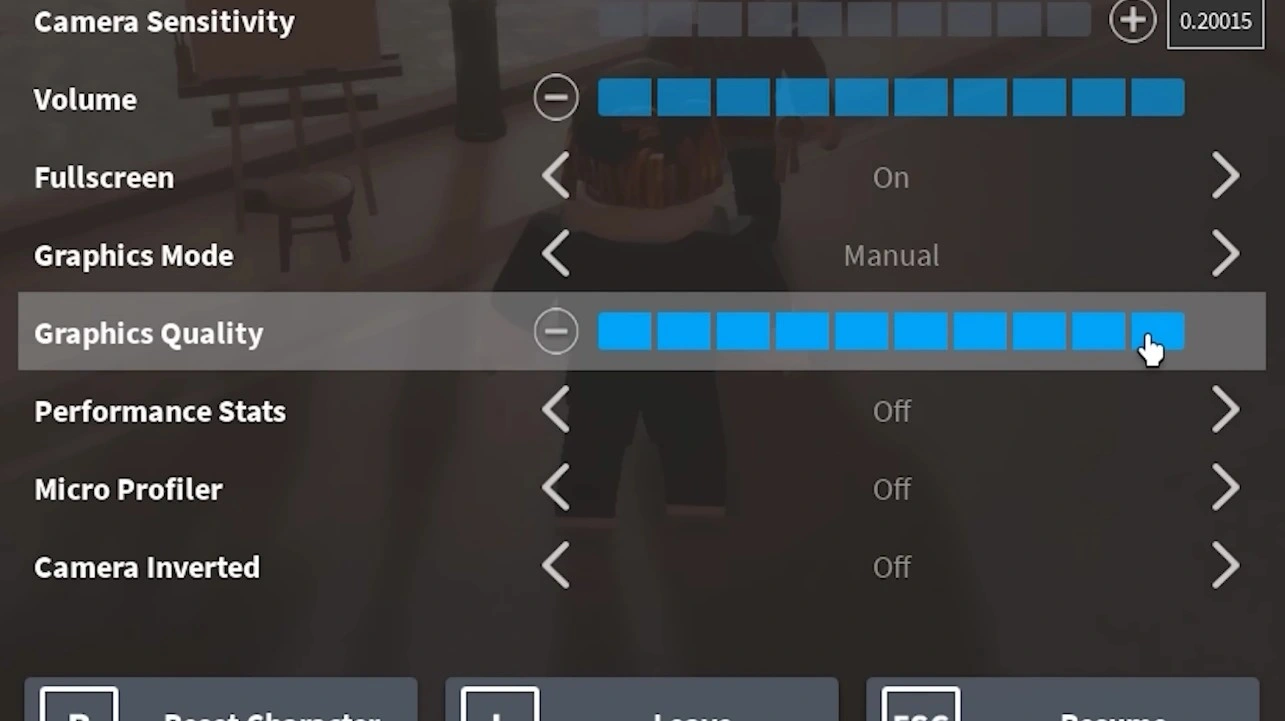

How To Record Roblox In High Quality While Keeping FPS Stable How To Record Roblox In High Quality 03.webp. How To Record Roblox Gameplay Easy Guide 2026 YouTube . How To Record Roblox In High Quality While Keeping FPS Stable How To Record Roblox In High Quality 02.webp. How To Record Your Roblox Video With Good Quality In 2025 YouTube . How To Fix Roblox Recording Quality Only Way 2025 YouTube


Easiest 5 Ways To How To Record Roblox On Any Device Built In Screen Recorder Over Roblox . How To Record Roblox With OBS YouTube . Want To Disable Roblox Captures Here S How Roblox Record Video . How To Increase Graphics Quality In Roblox 2025 Easy Guide YouTube . Top 5 Ways On How To Record On Roblox 2026 Videosolo Screen Recorder Preference Output
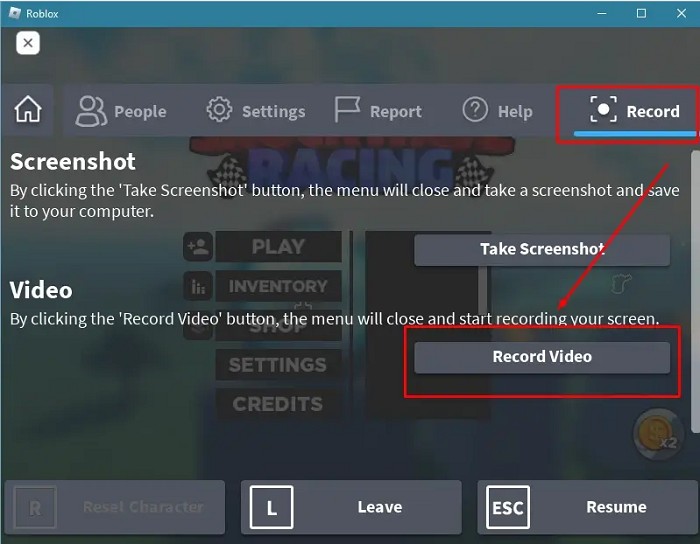


How To Record Roblox On Mac With Sound 2026 Preview Roblox Recording . 7 Roblox Screen Recorders To Capture Moments With Ease . How To Record Roblox With No Recording Software YouTube . How To Record Roblox With OBS 2025 PC YouTube . How To Record HIGH QUALITY Roblox Videos For FREE YouTube


How To Record Roblox On Mac With Sound 2026 How To Record Roblox On Mac . How To Improve Graphics And Increase FPS In Roblox Increase In Game Graphics In Roblox 1024x676 . HOW TO RECORD A VIDEO IN ROBLOX IN 2022 YouTube . How To Record Roblox With OBS Full Guide YouTube . How To Record ROBLOX With OBS 2026 Record ROBLOX On PC NO LAG
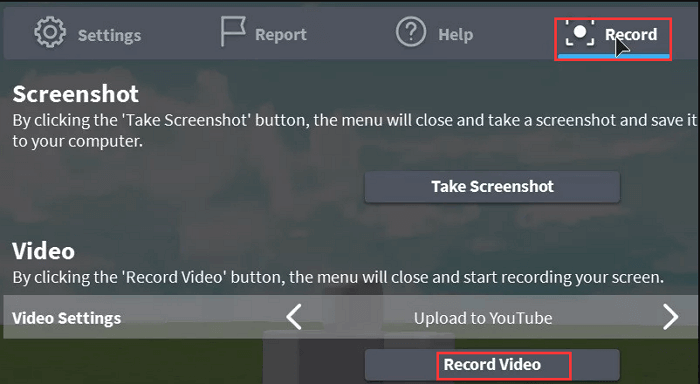

5 Ways How To Record On Roblox All Devices Roblox Recording . How To Increase OBS Recording Quality Best Settings Guide 2026 How To Increase Obs Recording Quality . 2026 Updated How To Record On Roblox With Ease 06 Mac Screen Recorder . How To Change Graphics Quality Roblox Mobile 2022 YouTube . 2026 Updated How To Record On Roblox With Ease 01 Direec Screen Recorder 1 768x446


How To CHANGE GRAPHICS QUALITY In ROBLOX YouTube . NEW How To RECORD ROBLOX Videos NO LAG High Quality December . Roblox Controls And Settings Guide MyGameDesk Com June 2026 2025 05 26 20 52 54 . How To Record Roblox In 2026 YouTube . Improve Stream Recording Quality OBS Settings AI Fixes 2026 Enhance Stream Recording Quality


Obs Studio How To Use Game Capture For Roblox How To . Screen Recording Tips Improve Audio Quality Of A Recording . How To Increase FPS In Roblox Pro Game Guides Roblox Quality . How To Change Graphic Quality At Roblox Studio Tutorial YouTube . How To Record Roblox Gameplay Ultimate Guide HOW TO RECORD GAMEPLAY ROBLOX