Are you a seasoned gamer balancing a demanding job or family life looking for a fresh engaging and often free to play platform to unwind or maybe youve heard the buzz about Roblox and wondered if its really for you especially if youre not a teenager Youre not alone Many adult gamers part of the 87 percent of US adults who game regularly are discovering the vast creative world of Roblox This comprehensive guide is designed for you the busy adult gamer who values practical advice performance optimization and genuine fun without the hype We will walk you through exactly how to play Roblox on the computer covering everything from effortless setup to mastering gameplay connecting with friends and even smart spending tips This article helps you dive into the Roblox metaverse on your computer smoothly and efficiently ensuring you maximize your fun without sacrificing valuable time or money Discover how to troubleshoot common issues and connect with friends in this ever evolving platform for a stress free gaming experience
Q: How exactly do I start playing Roblox on my computer after installation?
A: Once you've successfully installed the Roblox Player, the path to adventure is incredibly simple. You don't launch Roblox like a typical program from your desktop directly. Instead, you'll always start by visiting the official Roblox website (roblox.com) in your web browser. Log into your account, and then browse through the millions of 'experiences' available. When you find a game that sparks your interest, simply click on its thumbnail. You'll then see a large green 'Play' button. Clicking this button will automatically launch the Roblox Player application, and you'll be seamlessly transported into the chosen game world. This method ensures you're always playing the latest version of the game and the Roblox client.
Q: What are the most common performance issues for playing Roblox on a PC and how can I fix them?
A: Even on a decent PC, Roblox can sometimes stutter, especially in graphically intense experiences or crowded servers. The most frequent culprits are outdated graphics drivers, insufficient RAM for complex games, or a struggling internet connection. To fix this, first, ensure your graphics drivers are up to date via your GPU manufacturer's website (NVIDIA, AMD, Intel). Second, close any unnecessary background applications that consume RAM or CPU resources. Third, check your internet speed and stability. Within Roblox settings, lowering the graphics quality (Edit - Settings - Graphics Mode - Manual - Graphics Quality) can significantly improve frame rates, allowing you to enjoy smoother gameplay without needing a costly hardware upgrade. Finally, make sure Windows itself is updated, as system optimizations often include performance fixes.
Q: Can I really connect with my friends across different devices when playing Roblox on my computer?
A: Absolutely, and this is one of Roblox's greatest strengths for social gamers! Roblox boasts true cross-platform play. If you're on your PC, you can easily join your friends who are playing on their mobile phones, Xbox consoles, PlayStation, or even VR headsets, as long as you're all attempting to join the same specific Roblox experience. To do this, simply add them as a friend within Roblox. Once they're on your friends list and online, you'll see an option to 'Join Game' directly from their profile or your friends' sidebar on the Roblox website. This seamless connectivity makes it incredibly easy for busy adults to carve out time to socialize and game with their buddies, regardless of their preferred device.
Q: What are some must-try Roblox games for an adult gamer who has limited time?
A: For adult gamers balancing life, focus on experiences that offer quick immersion or clear objectives. 'Adopt Me!' is surprisingly popular for its cozy social simulation and pet collection. For something more strategic, 'Tower Defense Simulator' provides engaging, bite-sized challenges. If you like crafting and survival, 'Bloxburg' offers a life simulation experience with deep customization, though it costs Robux. Many adults also enjoy role-playing in games like 'Brookhaven RP' for casual social interaction or 'Jailbreak' for action-packed heists and escapes. Look for games with active communities and frequent updates, as these often provide the most consistent fun and value for your limited gaming hours.
Q: How can I manage my spending on Robux while playing on my computer?
A: Smart spending on Robux, Roblox's virtual currency, is key for budget-conscious gamers. First, treat Robux purchases like any other discretionary spending: set a monthly budget. You can purchase Robux directly on the Roblox website or through gift cards. Be wary of third-party sites offering 'free Robux' as these are almost always scams. Consider a Roblox Premium subscription for a monthly Robux allowance and exclusive perks, which can offer better value than one-off purchases if you play regularly. Many excellent experiences are entirely free, so prioritize those before diving into Robux-exclusive content. Always review purchases before finalizing, especially if you link payment methods.
Q: Why isn't Roblox launching after I click 'Play' on the website?
A: This is a common hiccup. The most frequent reason Roblox won't launch after clicking 'Play' is that your browser hasn't registered the Roblox Player application as installed, or the browser extension required for automatic launching is missing/disabled. First, try reinstalling the Roblox Player to ensure all components are fresh. Second, check your browser's extensions; some browsers require you to allow pop-ups or grant permission for the Roblox Launcher to run. Clear your browser's cache and cookies. If using a different browser, try using Chrome or Edge as they generally have better integration. Lastly, temporarily disable any aggressive ad-blockers or antivirus software that might be interfering, then try again.
Q: What are the best ways to stay updated on new Roblox games and features without getting overwhelmed?
A: Staying current with Roblox can feel like a full-time job, given its constant evolution. For busy gamers, focus on curated sources. Follow the official Roblox Twitter account or blog for major announcements. Many popular Roblox content creators on YouTube provide excellent summaries of new games and updates, saving you time. Join a few active Roblox-focused Discord servers where community members share discoveries and discuss trends. Instead of trying every new game, pick one or two trusted channels and let them filter the noise. This month's trends often highlight social experiences or unique simulations, so keep an eye out for those mentioned by your chosen sources.
Are you a seasoned gamer, perhaps balancing a demanding job or family life, looking for a fresh, engaging, and often free-to-play platform to unwind? Or maybe you've heard the buzz about Roblox and wondered if it's really for you, especially if you're not a teenager? You're not alone. Many adult gamers, part of the 87% of US adults who game regularly, are discovering the vast, creative world of Roblox. It's not just a kids' game anymore; it's a massive metaverse offering everything from complex simulations and RPGs to casual social hangouts, perfect for those precious 10+ hours a week we often dedicate to our digital escapes. But jumping into a new platform, especially one as expansive as Roblox, can feel daunting. From the initial download to optimizing performance on your computer, finding the right games, and understanding its unique social dynamics, there are often more questions than answers.
This comprehensive guide is designed for you: the busy adult gamer who values practical advice, performance optimization, and genuine fun without the hype. We'll walk you through exactly how to play Roblox on the computer, covering everything from effortless setup to mastering gameplay, connecting with friends, and even smart spending tips. Forget the convoluted forums and outdated advice; we're here to offer clear, actionable solutions to get you playing and enjoying Roblox on your PC today, ensuring your gaming time is well-spent and stress-free. Let's dive in and unlock the full potential of Roblox on your desktop or laptop!
How Do I Download and Install Roblox on My Computer?
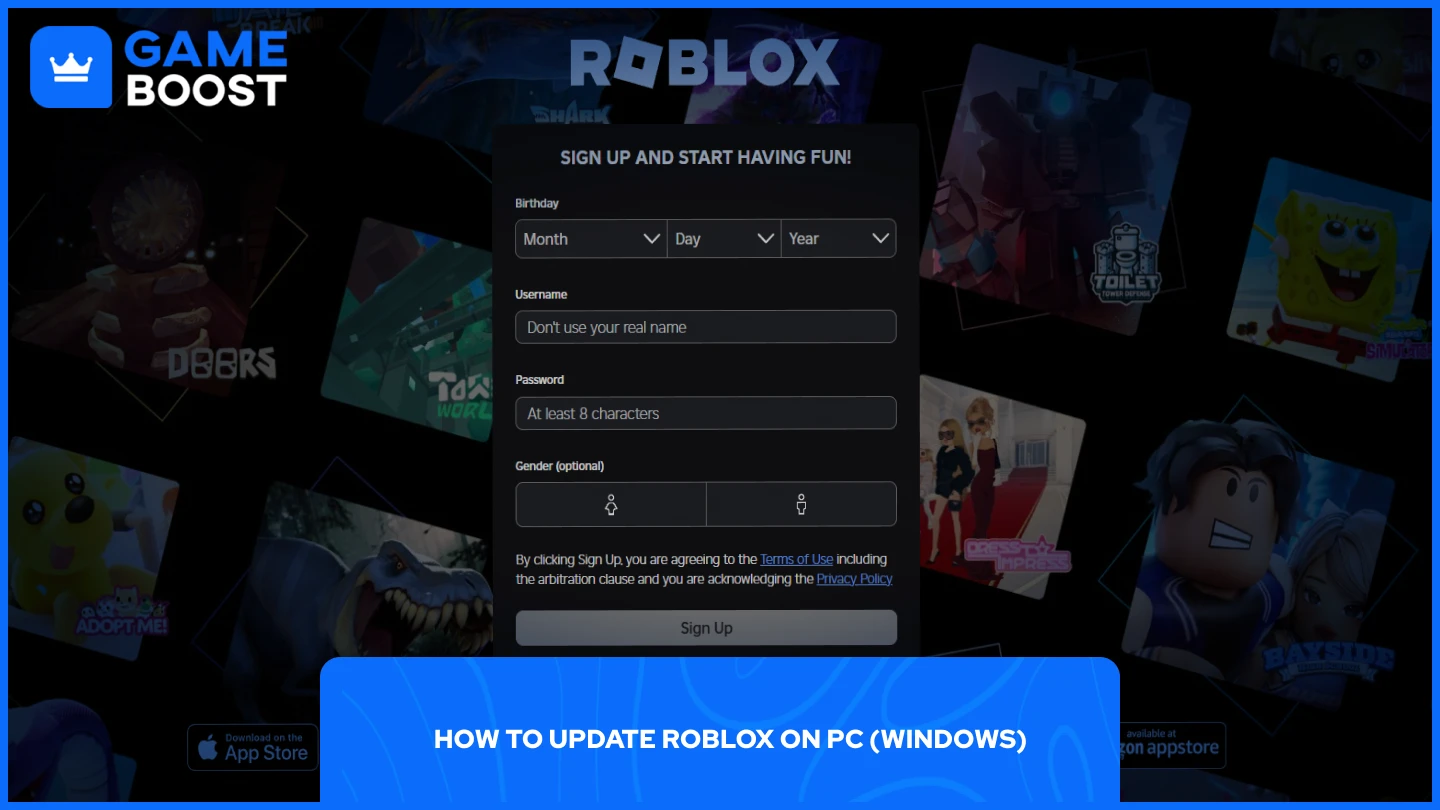
Getting Roblox onto your computer is surprisingly straightforward, designed to be accessible to everyone. Unlike traditional game purchases, Roblox is a free download from its official website, making it budget-friendly right from the start. First, open your preferred web browser and navigate to the official Roblox website. If you don't already have an account, you'll need to create one by providing your birth date, username, and password. This process is quick and simple, usually taking less than a minute. Once logged in, you can start exploring the vast library of games, or 'experiences' as Roblox calls them.
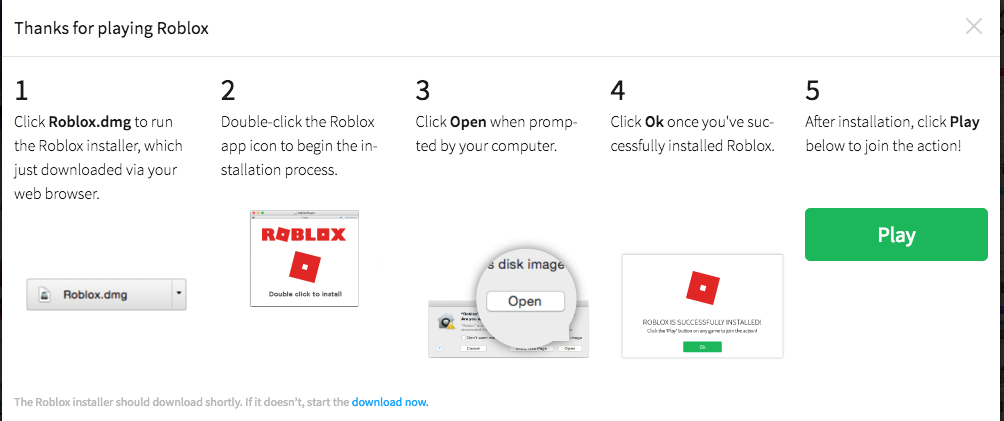
To initiate the download, simply click on any game experience you wish to play. A prompt will appear asking you to download and install the Roblox Player. Click the 'Download & Install Roblox' button. This will download a small installer file, usually named 'RobloxPlayerLauncher.exe'. Locate this file in your downloads folder and double-click it to run the installer. Follow the on-screen prompts; the installation wizard is intuitive and will guide you through the process, typically installing the Roblox Player in a matter of minutes, depending on your internet speed. Once installed, the game you initially selected will launch automatically, and you're ready to start exploring the metaverse. Remember, after the initial installation, you won't need to repeat this process; simply log in to the website and click on any game to launch it instantly.
What Are the Minimum System Requirements to Play Roblox on PC?
Roblox is famously optimized to run on a wide range of computers, meaning you likely don't need a cutting-edge gaming rig to enjoy it. For Windows users, the minimum requirements include Windows 7, 8, 8.1, 10, or 11 (64-bit recommended). You'll need at least an Intel Core i3 or equivalent processor, 1 GB of RAM (though 4 GB is much better), and at least 20 MB of available system storage for the Roblox Player itself, plus more for cached game content. A DirectX 9 or Shader Model 2.0 compatible graphics card is the bare minimum, but for a smooth experience, anything integrated from Intel HD 4000 or newer, or a dedicated GPU like an NVIDIA GeForce 400 series or AMD Radeon HD 6000 series, will work well. A stable internet connection with at least 4-8 Mbps download speed is also crucial for seamless gameplay and experience loading. These modest requirements ensure that the average adult gamer, balancing work and family, can easily jump into Roblox without needing significant hardware upgrades, a welcome relief in today's demanding gaming landscape.
How Can I Optimize Roblox Performance on My Computer for Smoother Gameplay?
Even if your PC meets the recommended specs, tweaking a few settings can significantly enhance your Roblox experience, especially in graphically intensive games. First, ensure your graphics drivers (NVIDIA, AMD, Intel) are always up to date; outdated drivers are a common cause of lag and crashes. Second, close any unnecessary background applications running on your computer, as they consume valuable CPU and RAM resources that Roblox could use. Third, within the Roblox game, navigate to the in-game settings (often found by pressing 'Esc' and selecting 'Settings'). Here, you can manually adjust the 'Graphics Quality' slider to a lower setting. Starting at level 3 or 4 can often provide a good balance between visuals and performance. Enabling 'Full-screen' mode can also sometimes dedicate more resources to the game. Lastly, clear your Roblox cache periodically by going to your 'App Data' folder (Type %localappdata% in Run) and deleting the 'Roblox' folder. These steps ensure you maximize your frame rates and enjoy a fluid experience, letting you focus on the fun without frustration.
What Kinds of Games Can Adults Play on Roblox, and How Do I Find Them?
Roblox has evolved far beyond its reputation as just a platform for younger players, now hosting a vast array of sophisticated and engaging experiences perfect for adult gamers. Many find enjoyment in complex simulation games like 'Adopt Me!' for pet collecting and social interaction, or 'Bloxburg' for its detailed life simulation and building mechanics (though Bloxburg requires a small Robux purchase). Role-playing games such as 'Brookhaven RP' offer casual social experiences, while 'Jailbreak' provides action-packed heists and police chases. Strategy titles like 'Tower Defense Simulator' offer challenging gameplay that appeals to problem-solvers. To find these gems, utilize Roblox's search filters: look for genres like 'Tycoon,' 'Simulator,' 'Roleplay,' 'Obby' (obstacle courses for skill-building), or 'FPS.' Reading game descriptions and player reviews can also guide you to experiences with more mature themes or gameplay depth. This month, social hangout games and unique, story-driven experiences are trending, offering fresh ways to unwind and connect after a busy day.
How Do I Add Friends and Socialize Effectively on Roblox PC?
Socializing is a core pillar of the Roblox experience, and connecting with friends on your PC is seamless. To add a friend, use the search bar on the Roblox website or in-game to find their username. Once on their profile, click the 'Add Friend' button. They'll need to accept your request. When a friend is online and playing a game, you can easily join them directly from your friends list on the website or within the Roblox application by clicking 'Join Game.' Communication happens via the in-game chat, which often has robust moderation. For more advanced social features, many experiences integrate third-party voice chat options or leverage Discord servers for their communities. Setting up a private server for specific games (some require Robux) allows you and your friends to have exclusive spaces for focused play and conversation, perfect for balancing social gaming with personal time and ensuring a comfortable environment.
Is Roblox Free to Play on Computer, and What About In-Game Purchases?
Yes, Roblox is fundamentally a free-to-play platform on your computer. You can download the Roblox Player, create an account, and access millions of experiences without spending a dime. Many games are entirely free, offering countless hours of entertainment. However, like most modern online games, Roblox does include in-game purchases. Its virtual currency is called Robux, which can be used to buy cosmetic items for your avatar, gain special abilities within games, purchase access to certain premium experiences (like Bloxburg), or acquire game passes that offer boosts and exclusive content. While optional, these purchases can enhance your experience. For the busy adult gamer, consider setting a budget for Robux. You can purchase Robux directly through the Roblox website using secure payment methods, or via gift cards. Roblox Premium subscriptions offer a monthly Robux stipend and exclusive perks, which can be a value-driven option if you're a regular player, allowing you to enjoy premium content without constant microtransaction decisions.
What Are Common Roblox PC Issues, and How Can I Troubleshoot Them?
While generally stable, Roblox on PC can occasionally present issues. One common problem is the game not launching after clicking 'Play.' This often points to a corrupted installation or a browser interference. Try reinstalling the Roblox Player entirely. Ensure your web browser allows pop-ups and browser extensions for Roblox to function correctly. Another frequent complaint is crashing or freezing during gameplay. This can be due to outdated graphics drivers, insufficient RAM for a particular experience, or conflicting background programs. Updating drivers, closing other applications, and lowering in-game graphics settings usually resolves this. 'Error Code 277' or 'Disconnected' errors often relate to internet connectivity; check your Wi-Fi stability or try a wired connection. If you encounter persistent lag, refer back to our performance optimization tips. The Roblox Support page also offers extensive troubleshooting guides. Addressing these common pain points can save you precious gaming time and prevent frustration, letting you focus on the fun.
How Can I Balance My Roblox Gaming with Work and Family Life?
For adult gamers balancing careers, families, and personal responsibilities, integrating gaming into a busy life requires smart strategies. Roblox's diverse and often casual experiences make it an excellent platform for this. Schedule your gaming sessions: instead of open-ended play, designate specific times, perhaps after the kids are asleep or during a lunch break. Many Roblox experiences are designed for short, engaging bursts, perfect for quick escapes. Communicate your gaming time with family members to avoid conflicts and set expectations. Utilize social features to connect with friends when it's convenient for you, even if it's just for a quick chat. Remember, gaming should be a source of relaxation and enjoyment, not another stressor. Prioritize experiences that offer clear objectives or simply let you unwind, rather than highly competitive ones that demand intense focus, helping you maintain a healthy balance between your virtual and real-world commitments.
Are There Any Safety Tips for Playing Roblox on a Computer?
Ensuring a safe and positive experience on Roblox, particularly for adult gamers and those with families, involves a few key practices. Always use strong, unique passwords for your Roblox account and enable Two-Step Verification for an extra layer of security. Be cautious about sharing personal information, even in private chats; Roblox's in-game filters are robust, but vigilance is key. Only make Robux purchases through the official Roblox website or trusted gift card retailers to avoid scams. Be aware of phishing attempts that promise 'free Robux' or 'exclusive items' – if it sounds too good to be true, it likely is. For parents, Roblox offers robust parental control features through account settings, allowing you to restrict chat, set spending limits, and filter experiences by age. Educating yourself and any younger family members about online safety best practices ensures that the fun of Roblox remains secure and enjoyable for everyone.
How Do I Stay Current with Roblox Trends and Updates Without Getting Overwhelmed?
Keeping up with the constantly evolving Roblox metaverse can feel like a full-time job, but for the busy gamer, there are efficient ways to stay informed without feeling overwhelmed. Instead of trying to follow every single update, focus on curated sources. Subscribe to the official Roblox Blog or follow their social media channels for major announcements and platform-wide changes. Many popular Roblox content creators on YouTube specialize in highlighting new or trending experiences, offering concise reviews and gameplay snippets that save you time. Consider joining a few well-moderated Roblox-focused Discord communities; these often have channels dedicated to new game discoveries, updates, and community discussions. This month, social role-play and innovative simulation games are particularly popular, reflecting a broader trend towards community and creativity. By strategically choosing a few reliable sources, you can stay informed about the best and most relevant trends, ensuring your limited gaming time is always spent on fresh, exciting content.
Navigating the expansive world of Roblox on your computer doesn't have to be a chore. As we've seen, with a few practical steps for installation, optimization, and smart engagement, you can transform your PC into a portal for endless creativity, social connection, and genuine fun. Roblox truly offers something for every type of gamer, from the casual player seeking stress relief after a long day to the competitive spirit looking to build new skills. Remember, the goal is to enhance your life, not complicate it, and Roblox provides that balance beautifully.
By applying these tips, you're not just playing a game; you're becoming part of a thriving global community, enjoying a platform that evolves every month with new trends and experiences. What's your biggest gaming challenge when trying to discover new PC games? Share your thoughts and tips below!
Frequently Asked Questions About Playing Roblox on PC
Q: Do I need a powerful gaming PC to play Roblox?
A: Not at all. Roblox is designed to be highly accessible. Most modern computers from the last decade with basic integrated graphics can run Roblox well. For the best experience in graphically intensive games, a dedicated GPU and a decent CPU are recommended but not strictly necessary for most experiences.
Q: Can I use a controller to play Roblox on my computer?
A: Yes, many Roblox experiences support Xbox controllers when playing on a PC. You might need to enable controller support within specific games if it's not automatically detected. Keyboard and mouse remain the primary input method for most games.
Q: How can I find age-appropriate games on Roblox for myself or family members?
A: Roblox has an age recommendation system for experiences. When browsing, look for the 'Age Recommendation' label. You can also use the search filters to narrow down games by genre, popularity, and specific keywords to find content that aligns with your preferences and comfort levels.
Q: Is it safe to make purchases on Roblox?
A: Yes, Roblox uses secure payment gateways for all in-game purchases of Robux, its virtual currency. Always ensure you are on the official Roblox website or using the official app to make purchases. It's wise to set spending limits if you're concerned about budget, as microtransactions are common.
Q: What if Roblox keeps crashing on my PC?
A: Common crash culprits include outdated graphics drivers, a slow internet connection, or too many background applications. Try updating your drivers, ensuring a stable connection, and closing unnecessary programs. If issues persist, reinstalling Roblox can often resolve corrupted files.
Q: Can I cross-play with friends on mobile or console if I'm on PC?
A: Absolutely! Roblox is a truly cross-platform experience. You can easily join friends who are playing on mobile devices, Xbox, PlayStation, or other platforms, assuming you are all playing the same Roblox experience. This makes social gaming seamless and inclusive.
Installation steps for PC, optimizing performance, finding popular games, social features and safety, budget-friendly play, troubleshooting common issues, balancing gaming with life, cross-platform play, smart Robux spending.
35


How To Play Roblox Online Free In 2026 Full Guide How To Play Roblox Online 1024x683 . How To Download And Play ROBLOX On PC Or Laptop New Update 2026 . How To Play Roblox On PC Laptop Roblox PC Controls YouTube . How To Play Roblox Without Downloading It June 2026 Easy Guide How To Play Roblox Without Downloading It . How To Install Roblox On A Computer Easily 2026 Guide


How To Play Roblox On PC Laptop 2024 YouTube . How To Play Roblox On PC Laptop Roblox PC Controls Tutorial YouTube . How To Play Roblox On PC And Laptop Quick Steps YouTube . How To Download And Play Roblox On PC Easy Guide 2026 YouTube Hqdefault . How To Install Roblox On A Computer Easily 2026 Guide

How To PLAY ROBLOX On A SCHOOL Computer YouTube . Roblox For Chrome Download Is It Possible In 2026 . Gaming Guide How To Play Roblox On Chromebook 2026 How To Download And Play Roblox On A Chromebook 696x392 . Hur Man Uppdaterar Roblox P PC Mobil Och Konsol 2026 Guide C54c81b2 Cc3a 47b7 Bc75. How To Play Roblox On ANY School Chromebook Or Laptop Easy Method


How To Play Roblox On A Laptop Complete Guide For Beginners Roblox 1144x644 . How To Draw A Roblox Noob Super Easy Step By Step Guide For Kids How To Make A Roblox Game In 2026 Beginner Guide 1024x683 . How To Install Roblox On A Computer Easily 2026 Guide Select Roblox And Click. How To Play Roblox For Beginners 2026 Step By Step Guide How To Play Roblox For Beginners 768x429 . How To Install Roblox On A Computer Easily 2026 Guide Image Asset


How To Play Roblox On PC Mac And Windows Guide 2026 How To Play Roblox On Pc 7 . How To Download Roblox On Any Device Easily In 2026 Roblox Download . How To Play Roblox Without Downloading May 2026 Play Roblox Without Downloading . How To Play Roblox On PC With MuMu Player 12 Efbdde5f 338c 428f 9203 . How Can You Play Roblox In 2026 And Beyond How To Play Roblox


How Can You Play Roblox In 2026 And Beyond Can You Play Roblox On The Steam Deck Yes You Can . How To Play Roblox On Windows 7 2026 YouTube . How Can You Play Roblox In 2026 And Beyond Roblox Xbox Can You Play Roblox On Xbox 1480 800 1.webp. How To Install Roblox On A Computer Easily 2026 Guide Install Roblox Step 30 . How To Play Roblox On A School Computer In 2026 Image



How To Play ROBLOX On PC YouTube . How To Play Roblox On PC Mac Roblox Bluestacks . Can You Play Roblox On A Chromebook In 2026 Play Roblox On Your Chromebook . How To Play Roblox Smoothly On Android At Leah Woodcock Blog . How To Install Roblox On A Computer Easily 2026 Guide